

Start by locking down who can create teams and applying a simple lifecycle policy. Those two controls alone prevent the sprawl that makes every other governance task harder. Here is what to do in the next 24–72 hours:
- Restrict team creation in the Microsoft 365 admin centre by limiting Microsoft 365 Group creation to a security group (use PowerShell:
Set-MsolCompanySettings -UsersPermissionToCreateGroupsEnabled $false, then grant the security group creation rights via Entra ID). - Enable group expiration in Microsoft Entra ID: set an expiration period and require owner renewal. Teams with no active owner will surface immediately.
- Apply a naming policy in Entra ID: add a prefix (e.g. department code) and a blocked-words list to prevent duplicate or ambiguous team names.
- Assign Teams policy packages to a pilot cohort of 10–20 users before broad rollout. Use the Teams admin centre or PowerShell (
Grant-CsUserPolicyPackage). - Configure a baseline retention policy in Microsoft Purview for Teams channel and chat messages. A retain-then-delete policy covering most Australian regulatory obligations.
- Check your licences: group expiration and dynamic membership require Microsoft Entra ID P1 (included in Microsoft 365 E3/E5 and Business Premium). Purview retention and eDiscovery features require E3 at minimum; advanced compliance features need E5 or the Microsoft Purview add-on. Verify in the Microsoft 365 admin centre under Billing > Licences.
Key takeaways
Effective Microsoft Teams governance requires restricting team creation, applying lifecycle policies, assigning role-based policy packages, and monitoring for unowned teams and guest drift on a regular cadence.
| Point | Details |
|---|---|
| Restrict creation first | Limit Microsoft 365 Group creation to a delegated security group in Entra ID before any other governance step. |
| Apply group expiration | A 180-day expiration policy with owner renewal surfaces unowned teams and prevents sprawl automatically. |
| Use policy packages | Assign role-based policy packages (knowledge worker, frontline, manager) to reduce per-user admin overhead at scale. |
| Retention and licensing | Purview retention policies require E3 at minimum; advanced compliance features need E5 or the Purview add-on. |
| Westerntechnology | Westerntechnology provides governance assessments, lifecycle automation, and Teams Phone setup for Perth SMEs. |
Table of Contents
- What governance decisions do you need to make first?
- How does the Teams lifecycle work in practice?
- How do you control team creation, naming, and guest access?
- How do Teams policy packages reduce admin overhead?
- How do you govern Teams features, apps, and update policies?
- Security, compliance and licensing in the Australian context
- How do you monitor and enforce Teams governance at scale?
- How do templates and provisioning drive consistency?
- What does a 60–90 day rollout plan look like?
- How Westerntechnology supports Teams governance in Perth
- Why the “set and forget” approach to Teams governance fails
- Westerntechnology’s Teams governance and managed IT services
- Sources
What governance decisions do you need to make first?
Plan for governance in Teams frames Microsoft Teams governance around four core decisions: who can create teams, how teams are named and classified, whether guests are permitted, and how teams are managed through their lifecycle. Getting these four right early prevents the configuration debt that compounds over months.
The trade-offs are real. Lock creation down too tightly and users route around you with personal accounts or third-party tools. Leave it too open and you end up with hundreds of abandoned teams, duplicated channels, and no clear data owner when a compliance request lands.
A practical default for most Australian SMEs: restrict creation to a delegated group (department leads, project managers, IT) rather than every user, but keep the request process simple. A Microsoft Form that triggers a Power Automate flow to provision a team from a template takes under a day to build and removes the friction that drives shadow IT.
| Governance axis | Open (low control) | Balanced (recommended) | Restricted (high control) |
|---|---|---|---|
| Who can create teams | All users | Delegated security group | IT only |
| Naming approach | No policy | Prefix + blocked words | Enforced full naming template |
| Guest access | Tenant-wide on | Per-team, owner-approved | Off by default, case-by-case |
| Lifecycle policy | No expiration | 180-day expiry, owner renewal | 90-day expiry, IT-approved renewal |
| Classification | None | Sensitivity labels at creation | Mandatory label, blocks sharing without label |
Pro Tip: When running your pilot, document each decision in a one-page policy record: the decision made, the rationale, the owner, and the review date. This becomes your governance register and saves hours when an auditor or new IT manager asks why a setting exists.
How does the Teams lifecycle work in practice?
Teams lifecycle management covers four stages: provisioning, active use, archiving, and deletion. Each stage needs a defined trigger and a responsible owner, otherwise teams drift between stages indefinitely.
Provisioning is where governance starts. A team should only exist if it has a stated purpose, at least two owners, and a sensitivity label applied at creation. Automated provisioning via Power Automate or the Microsoft Graph API enforces these requirements before the team is created, not after.
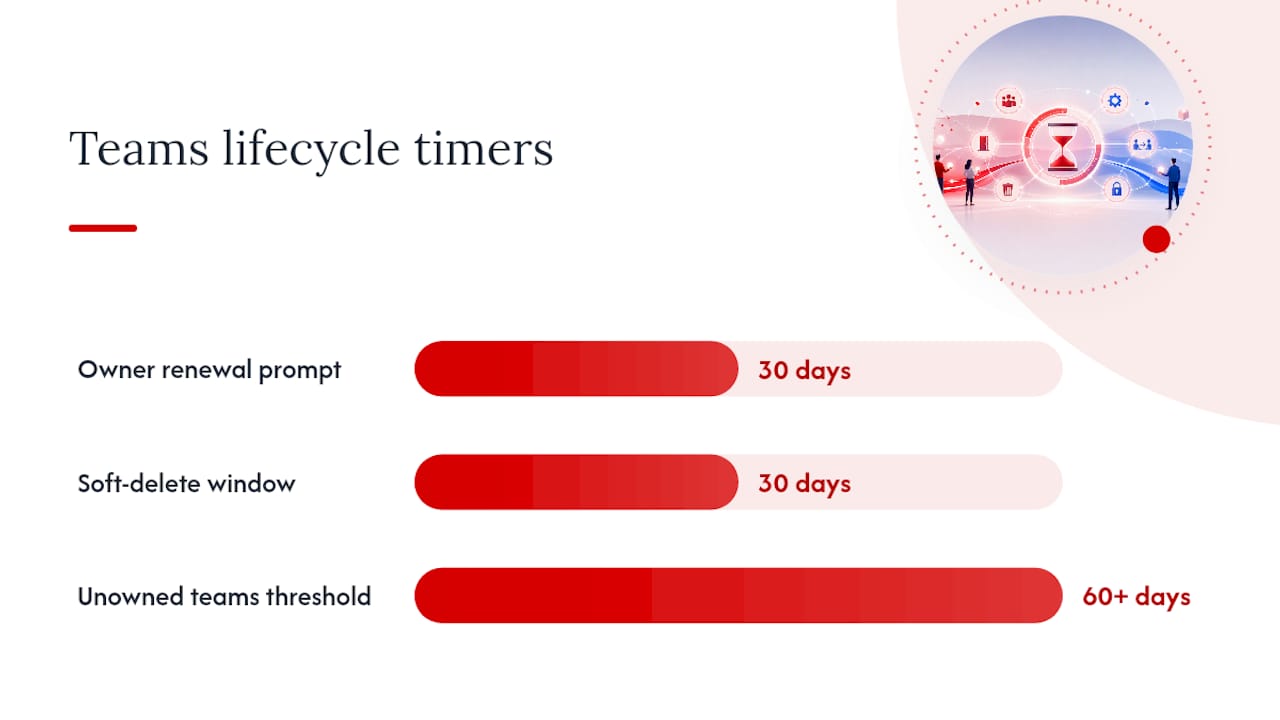
Active use is the longest stage. During this phase, the group expiration policy runs in the background. Owners receive renewal prompts 30 days before expiry. If no owner renews, the team enters a 30-day soft-delete window before permanent deletion. The Microsoft Learn lifecycle management module walks through configuring these controls in detail.
Archiving is the right outcome for completed projects or disbanded teams where the content still has compliance or reference value. Archived teams become read-only: members can view content but cannot post. Archiving does not affect retention policies; retained content remains subject to its policy regardless of archive status.
Deletion should be a deliberate action, not an automatic consequence of expiry alone. Before deletion, run a checklist:
- Confirm no active eDiscovery holds reference the team.
- Verify SharePoint site content has been migrated or is no longer needed.
- Check that any Teams Phone call logs or voicemails have been exported if required.
- Remove the team from any active retention policy scope if the data is no longer needed.
Pro Tip: Schedule a quarterly “unowned teams” report from the Teams admin centre. Any team with zero active owners for 60+ days is a governance risk. Assign a temporary owner, confirm the team’s status, then archive or delete. This single habit prevents most sprawl.
How do you control team creation, naming, and guest access?
Restricting creation is a one-time configuration with long-term payoff. In Microsoft Entra ID, navigate to Groups > General settings and disable the option allowing all users to create Microsoft 365 Groups. Then add your delegated security group to the allowed-creators list. Every team, Planner board, and SharePoint site created through Microsoft 365 Groups respects this setting.
Naming policy configuration
A teams naming policy in Entra ID supports two controls: prefix/suffix rules and a blocked-words list. Practical patterns for Australian organisations:
- Prefix by department:
FIN-,OPS-,HR-makes teams searchable and ownership obvious. - Suffix by type:
-Project,-Department,-Externalsignals the team’s purpose at a glance. - Blocked words: prevent names like “Test”, “Temp”, “Delete”, “Admin” that signal unmanaged teams.
Sensitivity labels (configured in Microsoft Purview) attach classification to teams at creation. Labels can control guest access, external sharing, and device access policies. A label like “Confidential” can block guest access at the label level, overriding any team-level setting the owner might try to change.
Guest access
Guest access in Teams is governed at three levels: the tenant level (Teams admin centre > Org-wide settings > Guest access), the Microsoft 365 Groups level (Entra ID), and the individual team level. The most defensible configuration:
- Tenant-level guest access: on, but with MFA enforced for all guests via Conditional Access.
- Entra ID cross-tenant access settings: restrict which external tenants can be invited.
- Sensitivity labels: use a “Confidential” or “Highly Confidential” label to block guest access on sensitive teams automatically.
- Require owner approval for each guest invitation rather than allowing members to invite.
Conditional access and device posture via Microsoft Intune adds another layer: guests on unmanaged devices can be limited to browser-only access, preventing file downloads.
How do Teams policy packages reduce admin overhead?
Policy packages bundle messaging, meeting, app, and calling policies into a single assignable unit. Instead of configuring five separate policies per user, you assign one package. When the package is updated, every user in that package inherits the change.
The Teams admin centre ships with several built-in packages. For most Australian SMEs, three role-based packages cover the majority of users:
Knowledge worker (office staff, managers): full meeting features, external chat enabled, approved app catalogue, standard messaging policy.
Frontline worker: simplified meeting experience, no external chat, restricted app access, no private channel creation.
Manager/executive: all knowledge worker settings plus live events, recording permissions, and priority notifications.
Managing Teams with policies notes that policy changes can take up to 24 hours to propagate after assignment. Plan package rollouts accordingly and avoid scheduling changes immediately before critical meetings or events.
Pro Tip: Create a custom policy package for your pilot group before broad rollout. Name it clearly (e.g. Pilot-KnowledgeWorker-2026) so you can identify it in audit logs and roll it back without affecting production packages. After pilot sign-off, rename or clone it as your production package.
Assigning packages at scale uses PowerShell batch assignment (New-CsBatchPolicyAssignmentOperation) or group-based policy assignment in the Teams admin centre. Group-based assignment is simpler to audit: you can see which group drives which package without querying individual user records.
How do you govern Teams features, apps, and update policies?
Feature governance in Teams operates through four main policy areas: meeting policies, messaging policies, app permission policies, and update policies. Each has its own admin surface in the Teams admin centre.
Meeting policies control recording, transcription, lobby settings, and who can present. Review these defaults: anonymous users joining meetings is on by default in many tenants, which is a risk for organisations handling sensitive client data. Set lobby bypass to “People in my organisation” for internal meetings and require explicit admission for external participants.
Messaging policies govern private chat, Giphy content, message editing and deletion, and read receipts. For regulated industries, disable message deletion by users (retained copies remain accessible for eDiscovery regardless, but visible deletion creates confusion about what was said).
App governance
App permission policies in the Teams admin centre control which apps users can install. The recommended approach:
- Set the global (org-wide) policy to allow only Microsoft apps and approved third-party apps.
- Build an approved app catalogue by vetting apps through the Microsoft 365 app certification programme.
- Block all apps by default, then explicitly allow vetted apps. This is more work upfront but far easier to audit.
- Review app consent: in Microsoft Entra ID, restrict user consent to apps from verified publishers only. Require admin consent for all other apps.
Pro Tip: Check the Teams admin centre’s app usage report monthly. Any app with a sudden spike in installs that you did not approve is a signal worth investigating. The report shows installs by app, user, and date.
Update policies control which users receive Teams public preview features. Never roll preview features to your entire organisation. Create a pilot ring of technically capable users, assign them the preview update policy, and use their feedback before enabling features broadly. This applies to new meeting experiences, channel types, and any feature flagged as “preview” in the admin centre.
Security, compliance and licensing in the Australian context
Teams retention policies and retention labels serve different purposes, and the distinction matters for eDiscovery. Retention policies for Teams retain or delete messages for a configured period. Users can delete messages in their Teams client, but the retained copy remains in a secured compliance location, accessible to compliance admins for eDiscovery until the retention period ends. Retention labels, by contrast, apply to individual items and can be applied manually or automatically based on content classification.
When multiple retention policies apply to the same content, the longest applicable retention period wins. This “preservation wins” principle means you cannot accidentally delete content that is subject to a longer policy elsewhere. Configure retention policies in Microsoft Purview, scoped to Teams channel messages, chats, and shared channel messages separately.
Shared channels and Teams call logs are supported by retention policies, but private channel message migration notes have evolved. Check the Microsoft Purview documentation for the latest migration guidance before configuring retention for private channels.
Licensing requirements
- Microsoft 365 E3 or Business Premium: required for Purview retention policies, basic eDiscovery, and Entra ID P1 (group expiration, dynamic groups, naming policy).
- Microsoft 365 E5 or Purview add-on: required for advanced eDiscovery, communication compliance, information barriers, and insider risk management.
- Teams Phone: requires a Teams Phone licence (previously Phone System) plus a PSTN connectivity option.
Australian-specific compliance notes
- Data residency: Microsoft 365 Australian tenants store core data in Australian datacentres by default. Verify your tenant’s data location in the Microsoft 365 admin centre under Settings > Org settings > Organisation profile > Data location.
- Teams Phone and PSTN: PSTN connectivity options include Calling Plans, Operator Connect, and Direct Routing. Each changes emergency-calling configuration obligations. In Australia, emergency call routing (000) must be verified with your PSTN provider before go-live. Treat PSTN selection as a governance decision, not just a technical one.
- DLP policies: configure Data Loss Prevention in Microsoft Purview to detect and block sensitive information (TFNs, credit card numbers, health identifiers) from being shared in Teams chats or channels.
- Information barriers: available with E5 or the compliance add-on, these prevent specific groups from communicating in Teams. Relevant for financial services organisations with Chinese wall requirements under ASIC guidance.
How do you monitor and enforce Teams governance at scale?
Governance without monitoring is a policy document, not a control. The three primary telemetry sources for Teams governance are the Microsoft 365 audit log, Teams activity reports in the admin centre, and Microsoft Purview compliance reports.
| Signal to monitor | Where to find it | What to act on |
|---|---|---|
| Unowned teams | Teams admin centre > Teams > Manage teams (filter: unowned teams) | Assign owner or archive within 30 days |
| Guest user growth | Entra ID > External identities > All external users | Review guests not active in 90+ days |
| App installs | Teams admin centre > Teams apps > Usage | Investigate unapproved app spikes |
| Retention policy coverage | Purview > Data lifecycle > Retention policies | Teams or users not covered by any policy |
| Policy package drift | PowerShell: Get-CsUserPolicyPackage |
Users on no package or wrong package |
| Audit log: team creation | Microsoft 365 compliance portal > Audit | Creation events outside approved security group |
Automation reduces the manual burden significantly. Practical scripts and workflows to build:
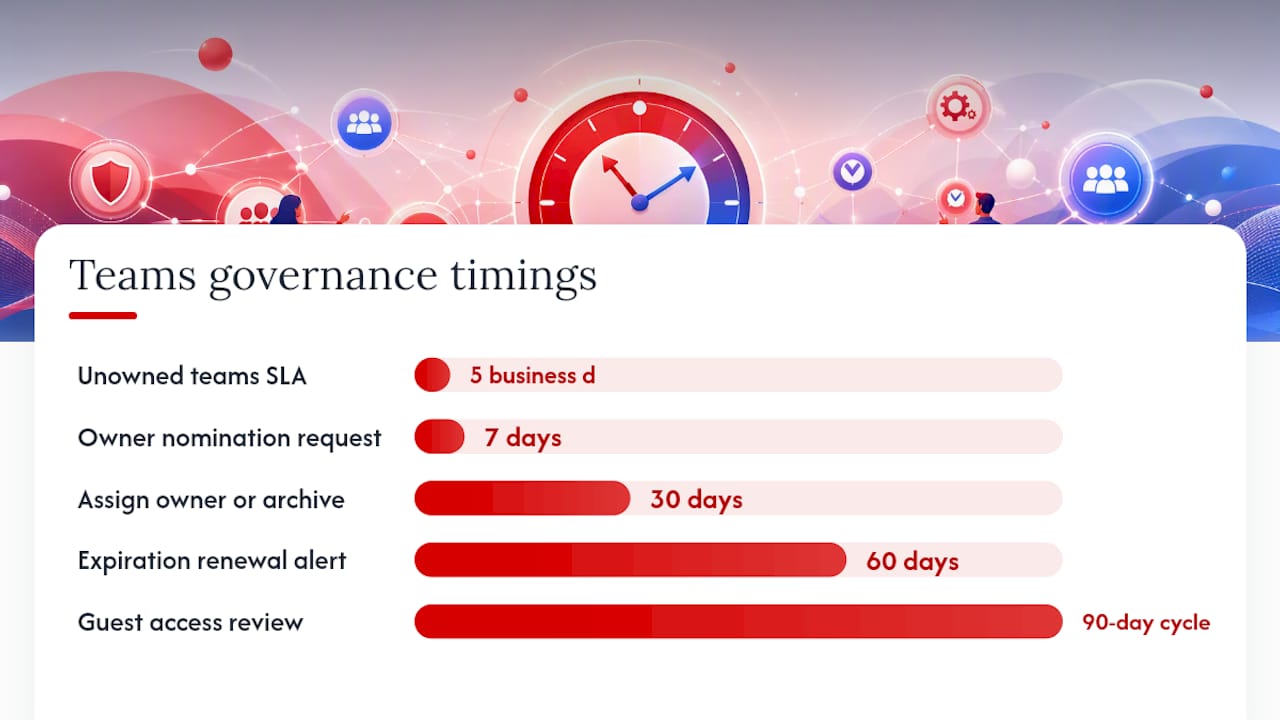
- Automated owner assignment: a Power Automate flow triggered when a team drops to zero owners, notifying the team’s creator and requesting they nominate a replacement within 7 days.
- Access review scheduling: configure Entra ID Access Reviews for guest users on a 90-day cycle. Owners review and confirm each guest’s continued need.
- Expiration renewal alerts: the built-in Entra ID expiration policy sends renewal emails, but supplement this with a Teams bot or email reminder 60 days before expiry for high-value teams.
Proactive monitoring services that cover Teams governance SLAs give you a defined remediation window (e.g. unowned teams resolved within 5 business days) rather than relying on ad-hoc discovery.
How do templates and provisioning drive consistency?
Built-in team templates in the Teams admin centre give you a starting point: channels, tabs, and apps pre-configured for common scenarios (project management, staff onboarding, incident response). Custom templates extend this by locking down channel names, pre-installing approved apps, and setting default permissions.
Template policies control which templates users see when creating a team. Hide templates that are not relevant to your organisation to reduce decision fatigue and prevent misconfigured teams.
For organisations that need more control, automated provisioning via the Microsoft Graph API or PowerShell removes the template selection step entirely. A provisioning request form (Power Apps or Microsoft Forms) collects the team name, purpose, owner, and classification, then a Power Automate flow calls the Graph API to create the team with the correct template, sensitivity label, and owner assignments applied automatically.
Pro Tip: Version your custom templates. When you update a template, existing teams are not retroactively changed, but new teams get the updated configuration. Keep a changelog in your governance register so you know which template version a team was created from. This matters when an audit asks why a team’s channel structure differs from the current standard.
Operational controls for templates: review custom templates quarterly. Remove templates that are no longer in use to prevent stale configurations from being selected. Test template updates in a non-production tenant before publishing.
What does a 60–90 day rollout plan look like?
A phased approach prevents the governance equivalent of a big-bang deployment: policies that look good on paper but break real workflows.
- Weeks 1–2: Baseline audit. Export current team inventory (PowerShell:
Get-Team), identify unowned teams, teams with no sensitivity label, and guest users with no active owner. This is your before-state. - Weeks 3–4: Pilot cohort selection. Choose 15–25 users across two or three departments. Include at least one heavy Teams user, one manager, and one frontline worker. Define pilot objectives: validate naming policy, test policy package assignment, confirm retention policy does not break workflows.
- Weeks 5–8: Pilot execution. Apply governance controls to the pilot cohort only. Microsoft’s governance quick-start guidance recommends deferring large-scale enforcement until after this initial experimentation phase. Collect feedback weekly. Track support tickets related to governance changes.
- Weeks 9–10: Rollout preparation. Update policy packages based on pilot feedback. Finalise naming policy and sensitivity label taxonomy. Prepare user communications: a one-page FAQ explaining what is changing and why.
- Weeks 11–12: Staged rollout. Enable creation restrictions, naming policy, and policy packages org-wide. Stagger by department over two weeks to manage helpdesk load.
- Ongoing: Steady-state operations. Monthly unowned-teams review. Quarterly guest access review. Annual policy review against regulatory changes and organisational structure updates. Owner attestation cadence: every 180 days aligned to group expiration.
Success metrics for the pilot: reduction in teams created per week (signals creation controls working), zero naming policy violations after week 6, and helpdesk tickets related to Teams governance under five per week by week 8.
How Westerntechnology supports Teams governance in Perth
Westerntechnology has worked with Perth-based SMEs to design and implement Teams governance frameworks that fit organisations without a dedicated compliance team. The typical engagement covers a governance assessment (current state audit, policy gap analysis), policy implementation (naming conventions, lifecycle automation, policy packages), and ongoing managed support.
For Teams Phone, Westerntechnology handles the full Teams calling setup including PSTN connectivity selection, emergency-call configuration for Australian requirements, and Direct Routing where Calling Plans are not cost-effective. PSTN selection is treated as a governance decision from the start, not an afterthought.
The Microsoft 365 governance and lifecycle management training module underpins the methodology Westerntechnology uses, combined with practical experience configuring these controls across Australian tenants.
Why the “set and forget” approach to Teams governance fails
Most Teams governance failures are not technical. The policies exist. The admin centre has the settings. What fails is the operating model: governance treated as a one-time project rather than an ongoing operational loop.
The organisations that get this right share one habit: they assign a named policy owner for each governance domain (lifecycle, naming, guest access, retention) and give that person a quarterly review cadence. Not a committee. One person, one domain, one calendar reminder. When a policy needs updating, there is no ambiguity about who decides.
For Australian SMEs, the practical constraint is usually time, not capability. A full-time governance programme is not realistic for a 50-person business. The answer is not to skip governance but to pick the three controls with the highest impact per hour of admin effort: creation restrictions, group expiration, and a baseline retention policy. Those three, configured correctly and reviewed quarterly, cover the majority of compliance and sprawl risks.
The pilot-first principle from Microsoft’s governance guidance is worth taking seriously. Overly restrictive controls pushed to all users at once generate support tickets, workarounds, and resentment. A pilot surfaces the friction points before they become organisation-wide problems. Test with real users, measure the ticket volume, adjust, then scale.
Governance that users understand and accept is governance that actually works. The technical configuration is the easy part.
Westerntechnology’s Teams governance and managed IT services
Perth businesses running Microsoft 365 have a local option for governance implementation that does not require a full-time internal IT hire. Westerntechnology delivers governance assessments, policy configuration, Teams Phone and Direct Routing setup, and ongoing managed support under a single agreement. You get a named contact who knows your tenant, not a rotating helpdesk queue.
The governance assessment takes your current Teams environment from unaudited to policy-compliant, with documented decisions, configured controls, and a 90-day review built in. For organisations mid-migration or switching platforms, the Microsoft 365 migration service includes governance as part of the transition, not as a separate engagement. Ready to get your Teams environment under control? Book a governance assessment with the Westerntechnology team today.
Sources
- Plan for governance in Teams