

For most Australian organisations, the right answer is Migration Manager for large file-share moves and SharePoint Migration Tool (SPMT) for on-premises SharePoint site migrations or smaller file-share lifts. The Migration API (PRIME) belongs in the mix only when a developer team needs granular control over sharing metadata. Whichever tool you pick, the operational pattern is the same: pilot on a representative sample, run incremental background syncs, then cut over.
Here is the short version before the detail:
- SPMT — best for on-prem SharePoint site migrations and small-to-medium file-share moves; simpler authentication scenarios; no agent infrastructure required.
- Migration Manager — built for large-scale file-share migrations; uses lightweight agents on Windows hosts; centralised task orchestration from the Microsoft 365 admin centre.
- Migration API (PRIME) — developer-led; preserves sharing metadata (SharedWithEvents, item references) that the other tools cannot fully replicate; requires engineering resource.
- Default pattern — pilot on a small user set, run incremental syncs in the background, disable the source share at cutover and redirect users to SharePoint or OneDrive.
Key takeaways
A successful SharePoint file migration depends on choosing the right Microsoft tool for your project scale, completing identity and permissions work before the first task runs, and validating with a pilot before committing to a full cutover.
| Point | Details |
|---|---|
| Match tool to scale | Use SPMT for on-prem SharePoint sites and small file shares; Migration Manager for large agent-based file-share moves. |
| Permissions are the highest risk | ACL mapping applies the most-restrictive rule; audit local groups and explicit denies before migration begins. |
| Pilot before full cutover | Run incremental background syncs on a representative 5–10% sample and validate before disabling the source share. |
| Hard limits to know | Per-site limits are 5 TB or 1 million items; keep path lengths under 400 characters; single files up to 250 GB. |
| Westerntechnology for Perth projects | Westerntechnology delivers end-to-end Microsoft 365 migration services in Perth, including assessment, agent deployment, and post-migration remediation. |
Table of Contents
- Which SharePoint migration tool should you use?
- How to plan and assess before you migrate a single file
- Authentication, identity mapping and permissions strategy
- Pre-migration checklist and technical prerequisites
- What happens during a migration: scan, package, upload and import
- How Migration Manager scales file-share moves with agents
- Platform limits, ACL quotas and common blocking issues
- Post-migration tasks: what to fix after content lands in Microsoft 365
- Reports and diagnostics: how to use Migration Manager’s CSV outputs
- Common errors and how to fix them
- A Perth and Australia practical checklist for your migration project
- What running migrations for Perth SMEs actually teaches you
- How Westerntechnology can reduce risk on your SharePoint migration
- Sources
Which SharePoint migration tool should you use?
The three Microsoft tools solve different problems, and picking the wrong one adds weeks of rework.
| Dimension | SPMT | Migration Manager | Migration API (PRIME) |
|---|---|---|---|
| Primary use case | On-prem SharePoint sites; small file shares | Large file-share moves | Developer-led; sharing-heavy content |
| Agent infrastructure | Not required | Required (Windows hosts) | Not required |
| Supported sources | SharePoint 2010–2016; file shares | File shares; SMB 2.0+ | Any (API-driven) |
| Authentication | NTLM, Kerberos, Forms, ADFS, MFA, SAML, client cert | Service account on agent host | OAuth / app-only |
| Sharing/metadata fidelity | Moderate | Moderate | High (item references, SharedWithEvents) |
| Centralised reporting | Yes (CSV reports) | Yes (CSV reports, agent health) | Custom (API responses) |
| Skill requirement | Low-to-medium | Medium | High (developer) |
SPMT suits the scenario where you are lifting a SharePoint 2013 or 2016 farm into SharePoint Online, or moving a handful of file-share paths for a small team. It runs from a single Windows machine, requires no agent deployment, and the SPMT overview confirms it supports NTLM, Kerberos, Forms, ADFS, multifactor authentication, SAML-based claims, and client certificate authentication. One important caveat: Windows authentication is not supported when the on-premises server uses multiple authentication providers that include Windows auth.
Migration Manager is the right choice when you are moving terabytes of file-share data across dozens of network paths. Agents run as Windows services on hosts close to the data source, authenticate to both source and destination, and receive tasks automatically from the Migration centre in the Microsoft 365 admin portal. The file-share migration guide treats this phased, agent-based approach as the proven pattern for large organisations.
Migration API (PRIME) is worth the engineering overhead only when “Shared with” fidelity genuinely matters. The API supports SharedWithEvents blocks and SharedWithMember entries to recreate the shared-with experience, and it uses item references to preserve sharing relationships that SPMT and Migration Manager simply drop.
Pro Tip: Run your initial assessment with the SharePoint Migration Assessment Tool (SMAT) before committing to a tool. SMAT surfaces blocked file types, path-length violations, and customisation dependencies early, so your tool selection is based on actual data rather than assumptions.
How to plan and assess before you migrate a single file
Assessment is where migrations are won or lost. Teams that skip it spend the back half of a project firefighting errors that a two-week scan would have caught.
What to inventory
Capture these before scoping begins:
- Total file count and aggregate size per share or site collection
- Version history depth (deep version histories multiply storage consumption in SharePoint Online)
- ACL complexity: number of unique permissions, explicit deny entries, and nested group memberships
- SharedWithEvents count (relevant if using Migration API for sharing fidelity)
- Custom metadata columns, content types, and managed metadata term sets
- Active workflows (SharePoint Designer, Nintex, Power Automate) and any InfoPath forms
- User and group owners per share, mapped to Azure AD identities
Destination mapping
The destination decision shapes everything downstream. Personal, non-collaborative content belongs in OneDrive for Business. Shared team content with defined membership belongs in a SharePoint library, ideally connected to a Microsoft Teams channel. Content with broad organisational read access suits a communication site. Getting this wrong means users cannot find their files after cutover, which generates a support spike that is entirely avoidable.
Sizing a pilot
Microsoft recommends selecting a small, representative user set for the pilot, one that includes at least one folder structure with complex permissions and one with deep version history. A good pilot covers a representative subset of the total data volume. Timeline estimates depend heavily on available bandwidth: a 1 Gbps WAN link to an Australian Microsoft data centre (Sydney or Melbourne region) can sustain several hundred gigabytes per hour under ideal conditions, but real-world throughput is typically lower once throttling, agent overhead, and network contention are factored in.
Risk flags to resolve before you start
- Blocked file types — SharePoint Online rejects certain extensions; identify and quarantine them during assessment.
- Path length — keep combined source paths under 400 characters; anything longer will fail at import.
- Large single files — Migration Manager supports files up to 250 GB; anything larger needs a separate plan.
- Sensitivity labels with user-defined permissions — these do not migrate cleanly and require manual reapplication post-migration.
- Pre-migration clean-up — delete or archive stale content before migration; migrating redundant data wastes time and storage quota.
Authentication, identity mapping and permissions strategy
Getting identity right before the first migration task runs prevents the most common class of post-migration failures: content that lands in SharePoint but is inaccessible because the owning identity does not exist in Azure AD.
Supported authentication methods
SPMT supports NTLM, Kerberos, Forms-based, ADFS, multifactor authentication, SAML-based claims, and client certificate authentication. Migration Manager agents authenticate using a service account on the agent host. The multi-provider Windows authentication caveat applies to SPMT specifically: if your on-premises SharePoint server is configured with multiple authentication providers and one of them is Windows auth, SPMT cannot authenticate against it in that configuration.
Identity mapping steps
- Pre-create all user accounts in Azure AD before migration tasks run.
- Assign Microsoft 365 licences that include SharePoint Online and OneDrive for Business.
- For cross-tenant or multi-geo moves, generate an identity map file (CSV) that maps source UPNs or SIDs to destination UPNs, and upload it to the migration tool before tasks start.
- Confirm directory synchronisation (Azure AD Connect or Entra Connect) is complete and that all on-premises groups have cloud equivalents.
Permissions strategy
NTFS and share permissions map to SharePoint roles during migration, but the mapping applies the most-restrictive combination of share and NTFS permissions. Advanced NTFS permissions (such as “traverse folder” or “create files”) are dropped entirely; SharePoint has no equivalent. Explicit deny entries are also removed. This means some users may end up with broader access in SharePoint than they had on the file server, which is a security consideration worth reviewing with your governance team before cutover.
External (B2B) users need to be provisioned as guest accounts in Azure AD before migration. If SharedWithEvents reference external identities that do not yet exist, those sharing records will fail silently.
Pre-migration checklist and technical prerequisites
Complete every item here before running a production migration task. Skipping steps in this list is the primary cause of mid-migration failures that require a full restart.
| Prerequisite | Owner | Notes |
|---|---|---|
| Global Admin or SharePoint Admin role | Identity team | Migration Admin role is sufficient for Migration Manager tasks |
| Migration Manager agent credentials | Network/ops team | Least-privilege service account; read access to source, write to destination |
| OneDrive pre-provisioned for all users | Identity team | Use PowerShell bulk provisioning; missing OneDrive causes task failure |
| Microsoft 365 licences assigned | Identity team | SharePoint Online Plan 2 or Microsoft 365 Business Standard minimum |
| Azure AD Connect sync confirmed | Identity team | All source accounts must resolve to Azure AD UPNs |
| Source shares set to Read/Write | Network/ops team | Read-only source shares cause migration task failures |
| Target sites NOT pre-created | Migration owner | Microsoft warns that existing target sites cannot be overwritten |
| Path lengths audited and remediated | Migration owner | Keep combined paths under 400 characters |
| Blocked file types quarantined | Migration owner | Run SMAT scan output to identify list |
| SMB 2.0 or higher on source servers | Network team | Migration Manager agents require SMB 2.0+ |
| Multi-Geo tenant configuration confirmed | Identity team | Assign preferred data location before OneDrive provisioning |
| Agent hosts provisioned (Migration Manager) | Network/ops team | Windows Server 2016 or later; co-locate with data source |
What happens during a migration: scan, package, upload and import
Each migration task moves through four distinct stages. Knowing what each stage does tells you where to look when something stalls.
-
Scan — the tool or agent reads the source structure, enumerates files and folders, checks permissions, and flags issues (blocked types, path violations, inaccessible items). This is the prescan phase; it produces the ScanSummary report without moving any data.
-
Package — the tool creates a migration package: a manifest that describes the content, its metadata, permissions, and version history. The manifest is what SharePoint Online reads during import.
-
Upload — the package is uploaded to a dedicated Azure Blob Storage container. Migration Manager encrypts this container with AES-256-CBC and a single-use container key valid for three days. The container is purged 30–90 days after creation. No content sits unprotected in transit or at rest.
-
Import — SharePoint Online timer jobs read the manifest from the Azure container and write content into the target library or OneDrive. This is the stage where permission mapping is applied and version history is reconstructed.
What to monitor
Watch agent health in the Migration centre during upload and import. A stalled task with no packet activity for more than 15 minutes usually indicates a container key expiry, a throttled import queue, or a network interruption between the agent and the Azure endpoint. The ItemSummary report updates incrementally and shows counts for scanned, packaged, uploaded, and migrated items in near real time.
Running an incremental migration
Microsoft’s file-share migration guidance describes the recommended approach: run the pilot migration on a small user set, then run incremental background migrations that copy only changed files without interrupting users. At cutover, disable the source file share and redirect users to SharePoint or OneDrive. Because migration copies files without deleting the source, the original share remains intact as a fallback until you are confident the migration is complete.
Pro Tip: For very large datasets (multi-terabyte seeding), consider Azure Data Box to physically ship an initial bulk load to Microsoft’s data centre. Subsequent incremental syncs over the network are then far smaller and faster. Place agents on Windows hosts in the same network segment as the file server, not on a remote VM, to avoid double-traversal of your WAN link.
How Migration Manager scales file-share moves with agents
Migration Manager’s agent model is what separates it from SPMT for large projects. Agents are lightweight Windows services installed on hosts you control, typically VMs or physical servers sitting close to the file-share data source.
Agent architecture
Each agent authenticates to the source file share using a service account and to Microsoft 365 using the Migration Manager service. The Migration centre in the Microsoft 365 admin portal distributes tasks to agents automatically, balancing load across an agent group. Agents run tasks, report status, and form agent groups for workload distribution and centralised monitoring.
Operational controls
From the Migration centre you can pause individual tasks, reassign them to a different agent, or throttle the rate at which tasks are dispatched. Agent health is visible in the portal: a red agent status means the service has stopped or lost connectivity; a yellow status typically means the agent is throttled by SharePoint Online’s import queue. Prescans can be run independently of migration tasks, which lets you validate a new batch of paths before committing to a full migration run.
Credential and topology planning
Design least-privilege service accounts: the agent account needs read access to the source share and nothing more. The Microsoft 365 side uses the Migration Manager service’s own credentials. Distribute agents across fault domains so a single host failure does not stall the entire project. For a large Perth enterprise with multiple office locations, placing one agent group per site keeps traffic local and avoids saturating the inter-office WAN. Under-provisioned agents reduce throughput; over-privileged accounts widen your attack surface during what is already a sensitive data-movement window.
Platform limits, ACL quotas and common blocking issues
Hard limits cause hard failures. Know these before you scope the project.
| Limit | Value | Remediation |
|---|---|---|
| Per-site storage | 5 TB | Split large content sets across multiple site collections |
| Per-site item count | 1 million items | Archive or distribute content before migration |
| Recommended max path length | 400 characters | Rename folders or restructure hierarchy pre-migration |
| Single file size (Migration Manager) | 250 GB | Use Azure Data Box or split large files before migration |
| Source server protocol | SMB 2.0 or higher | Upgrade source server OS if required |
| Unique ACL threshold | Avoid excessive unique permissions | Consolidate permissions to reduce unique ACL count before migration |
Microsoft’s cross-tenant migration documentation confirms the 5 TB and 1 million item per-site limits and the requirement that target sites must not pre-exist.
ACL and sharing quotas
SharePoint Online has a practical limit on the number of unique permissions per library. Migrating a file server with deeply nested, unique ACLs on every subfolder will hit this limit and cause import failures. The remediation is to consolidate permissions before migration: identify folders where unique permissions exist only because of inheritance breaks, restore inheritance where possible, and document the exceptions that genuinely need unique access.
SharedWithEvents are also throttled. If you are using the Migration API to preserve sharing metadata, the API guidance warns about quotas on Share with Me events per item. Exceeding these quotas causes sharing records to be silently dropped.
Common blocking issues
Blocked file types — SharePoint Online blocks certain extensions by default (for example, .exe, .tmp). Identify these in the SMAT scan output and either exclude them from migration or rename the extension where policy permits.
Sensitivity labels with user-defined permissions — these labels cannot be migrated and must be manually reapplied after content lands in SharePoint Online. Flag all labelled content during assessment.
File lock contention — open files on the source share cannot be read by the migration agent. Schedule migration tasks outside business hours or notify users to close files before cutover tasks run.
Post-migration tasks: what to fix after content lands in Microsoft 365
Content arriving in SharePoint Online is not the finish line. Several categories of configuration do not survive migration and need to deliberate remediation.
- Workflows — SharePoint Designer workflows do not migrate. Rebuild them in Power Automate before cutover, or accept a temporary gap in automation during the transition period.
- Apps and web parts — third-party web parts and SharePoint add-ins need to be reinstalled and reconfigured in the target site. Classic web parts from SharePoint 2010/2013 have no modern equivalent and may need to be redesigned.
- Sensitivity labels — labels with user-defined permissions must be manually reapplied. Labels with predefined permissions may migrate but should be validated against the source configuration.
- PowerApps and Power Automate flows — any flow or app that references a specific SharePoint list or library URL needs its data source updated to point to the new location.
- Sharing links — anonymous sharing links from the source do not carry over. Recreate any externally shared links in SharePoint Online and notify external recipients of the new URLs.
- User communication — send a pre-cutover notice at least five business days before the switch, a same-day notice when the source share is disabled, and a follow-up within 48 hours with links to training resources. Keep the source share accessible in read-only mode for at least two weeks post-cutover to handle stragglers.
Reports and diagnostics: how to use Migration Manager’s CSV outputs
Migration Manager and SPMT generate a set of CSV reports that are the primary triage tool for any migration project.
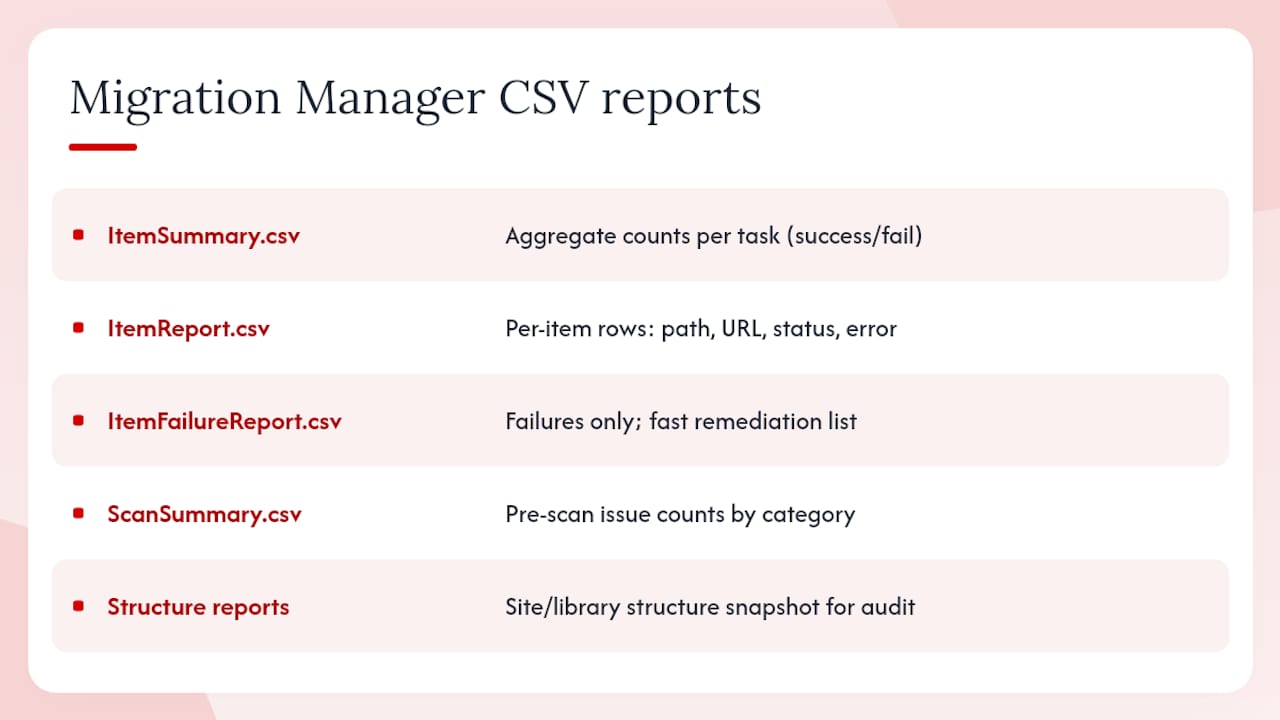
ItemSummary.csv gives aggregate counts per task: scanned, packaged, uploaded, migrated, failed reading, and failed uploading. Use this to confirm a task completed successfully and to identify tasks with non-zero failure counts that need investigation.
ItemReport.csv is the per-item detail: one row per file or folder, with source path, destination URL, status, and any error code. This is where you find the specific files that failed and why.
ItemFailureReport.csv filters ItemReport to failures only, making it faster to work through a remediation list without scrolling past successful rows.
ScanSummary.csv covers the prescan phase: items scanned, issues detected by category (path length, blocked type, permission complexity), and counts per issue type. Use this during assessment to prioritise remediation before migration tasks run.
Structure reports document the site or library structure as it existed at migration time, useful for auditing and for validating that the target structure matches the source intent.
Store all reports in a SharePoint document library or a secure file share for at least 90 days post-migration. Australian Privacy Act obligations may require longer retention depending on the nature of the content migrated.
Common errors and how to fix them
Most migration failures fall into a small number of patterns.
Authentication failures show up as task errors in the Migration centre with HTTP 401 or 403 codes. Check that the service account password has not expired, that the account has not been locked, and that MFA has not been enforced on the account without a corresponding exclusion policy.
Path length errors appear in ItemFailureReport with a path-too-long error code. The fix is to rename the offending folder or file at the source, re-run the prescan to confirm the path is now within 400 characters, and requeue the task.
File lock contention produces “file in use” errors. Schedule a re-run outside business hours or ask users to close the specific files identified in ItemFailureReport.
Upload throttling manifests as tasks that run slowly or stall. SharePoint Online throttles import jobs during peak periods. Stagger task start times, reduce the number of concurrent tasks per agent, and prefer off-peak windows (overnight AWST for Australian tenants targeting the Sydney region).
Container key expiry occurs when a migration package sits in the upload queue for more than three days without being imported. The single-use container key expires and the task must be requeued. Avoid queuing more tasks than your agents can process within a 72-hour window.
Rollback procedure
Because migration copies rather than moves content, the source file share remains intact throughout. If a critical content set lands incorrectly in SharePoint Online, the rollback is straightforward: keep the source share in Read/Write mode, delete the incorrectly migrated content from SharePoint Online, correct the configuration issue (path, permissions, destination mapping), and rerun the migration task. Do not disable the source share until ItemSummary confirms zero failures for that task set and at least two business days of user validation have passed.
A Perth and Australia practical checklist for your migration project
Australian organisations face a few considerations that generic Microsoft documentation does not address directly.
-
Confirm data residency — Microsoft 365 tenants provisioned in Australia store data in the Sydney and Melbourne data centres by default. Verify your tenant’s default data location in the Microsoft 365 admin centre before migration begins. For organisations subject to the Australian Privacy Act 1988 or sector-specific frameworks (APRA CPS 234, ISM controls for government agencies), document the data residency confirmation as part of your migration record.
-
Assess WAN readiness — many Perth businesses connect to the internet via NBN Business or dedicated fibre services. Measure available upload bandwidth from each office location to the Microsoft 365 network endpoints before sizing your agent deployment. Microsoft publishes its network connectivity principles and recommends direct egress to Microsoft’s network rather than backhauling through a central proxy.
-
Assign governance owners — nominate a migration owner (typically the IT manager or project lead), an identity owner (responsible for user provisioning and licence assignment), and a business owner per department who approves the destination mapping and signs off on post-migration validation.
-
Pilot sizing — for Perth SMEs with under 100 users, a pilot of 10–15 users covering the most complex permission structures is sufficient. Larger enterprises (200+ users, multiple sites) should pilot at least two full department shares before committing to a full rollout.
-
Timeline estimate — allow two to four weeks for assessment and remediation, one to two weeks for pilot migration and validation, and one to three weeks for incremental production migration depending on data volume and bandwidth. Post-migration remediation (workflows, labels, user onboarding) typically adds another one to two weeks. A realistic end-to-end timeline for a mid-sized Perth business is eight to twelve weeks.
-
Cost drivers — primary cost factors are labour for assessment and remediation, agent host infrastructure (if not already available), and any third-party workflow rebuilds. Microsoft 365 licensing is the platform cost; migration tooling (SPMT, Migration Manager) is included at no additional charge.
-
When to engage a local managed IT partner — consider bringing in a Perth-based managed IT provider when: your internal team lacks migration experience; the identity topology is complex (hybrid Azure AD, multi-geo, or federated identity); compliance documentation is required; or the project timeline is fixed and internal resource is constrained. A local partner also reduces the risk of after-hours support gaps during cutover, which in Perth often falls outside Sydney-based support hours.
For organisations triggering migration due to a platform end-of-life event, the Windows Server 2012 end-of-life context is worth reviewing alongside this checklist, as file-server migrations often coincide with broader infrastructure refresh cycles.
What running migrations for Perth SMEs actually teaches you
The gap between what a migration plan says and what happens on the day of cutover is almost always a permissions problem. Not a tool problem, not a network problem. Permissions.
A typical scenario: a professional services firm in Perth migrates 800 GB of client files from a Windows Server file share. The assessment looks clean. The pilot runs without errors. On cutover day, half the staff cannot access their folders in SharePoint Online because the source share had a mix of domain group permissions and local machine groups that had no Azure AD equivalent. The local groups were invisible to SMAT because they resolved correctly on the source server but mapped to nothing in the cloud. The fix took two days of manual ACL remediation that should have been caught in week one.
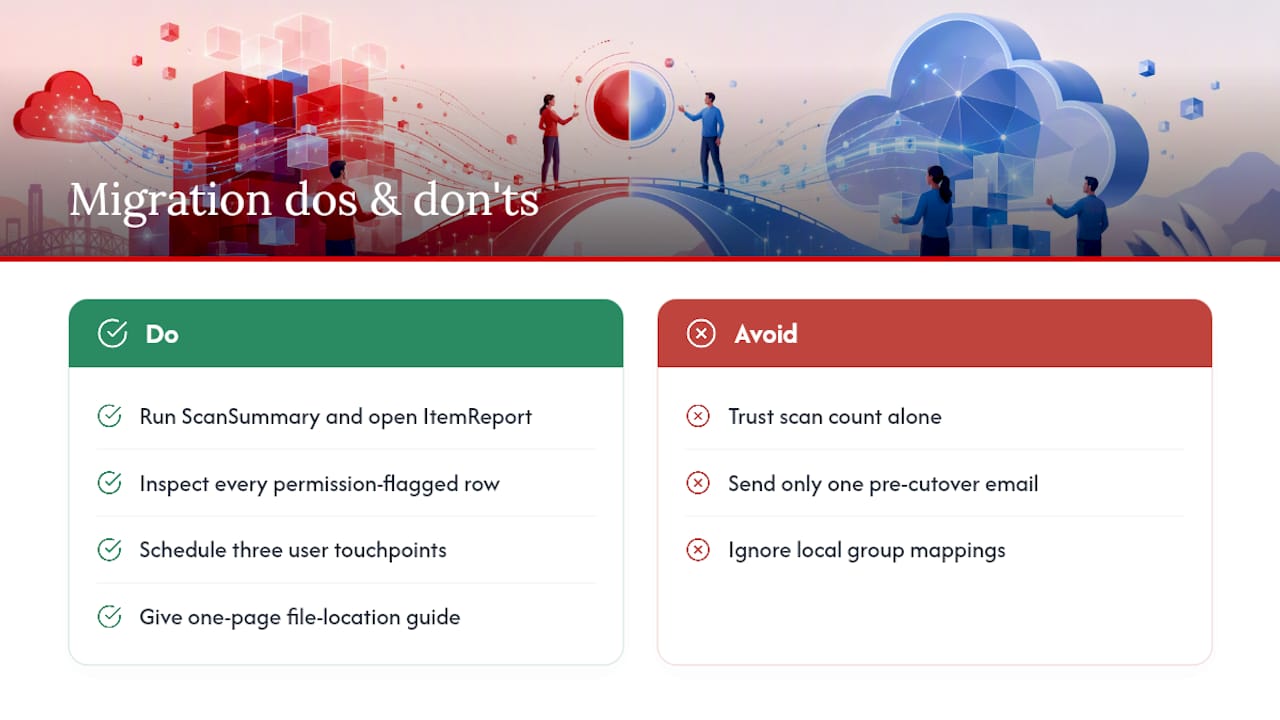
The lesson is not that the tools are unreliable. It is that the assessment phase needs a human review of ACL reports, not just a scan count. Run the ScanSummary, open ItemReport, and look at every row with a permission-related flag before you declare the assessment complete.
A second pattern that comes up repeatedly with Perth SMEs: underestimating the user communication effort. IT teams focus on the technical migration and send a single email the day before cutover. Users arrive the next morning, cannot find their files, and call the helpdesk. A structured communication plan with at least three touchpoints (two weeks out, one week out, day of) and a simple one-page “where did my files go” guide cuts helpdesk volume significantly.
The Microsoft 365 migration services that Westerntechnology delivers in Perth follow a structured pre-migration assessment precisely because these two failure modes are so consistent. Getting the identity and permissions work right before the first task runs is the single highest-leverage investment in a migration project.
How Westerntechnology can reduce risk on your SharePoint migration
Westerntechnology handles Microsoft 365 migrations for Perth businesses end-to-end: assessment and scoping, user pre-provisioning, agent deployment, incremental migration runs, post-migration remediation, and end-user onboarding. The practical difference from a DIY approach is that your internal team stays focused on the business while the migration runs in the background, and you have a local team available during cutover, not a remote support queue operating on Eastern Standard Time.
Service scope includes SharePoint consulting, identity mapping, sensitivity label reapplication, Power Automate flow updates, and structured user communications. For organisations with compliance obligations under the Australian Privacy Act or APRA frameworks, Westerntechnology documents the migration process and data residency confirmation as part of the engagement.
To discuss your migration project, contact the managed IT services team in Perth for a scoping conversation.
Sources
- Migrate file shares to Microsoft 365 with Migration Manager – Migrate to Microsoft 365 | Microsoft Learn
- Cross-tenant SharePoint migration – Microsoft Learn